Learning path
Tasks
Last updated: November 2026
Promised in a meeting or noted in a hurry: folo pulls out the tasks and puts them on one list. Each one knows where it came from.
The list
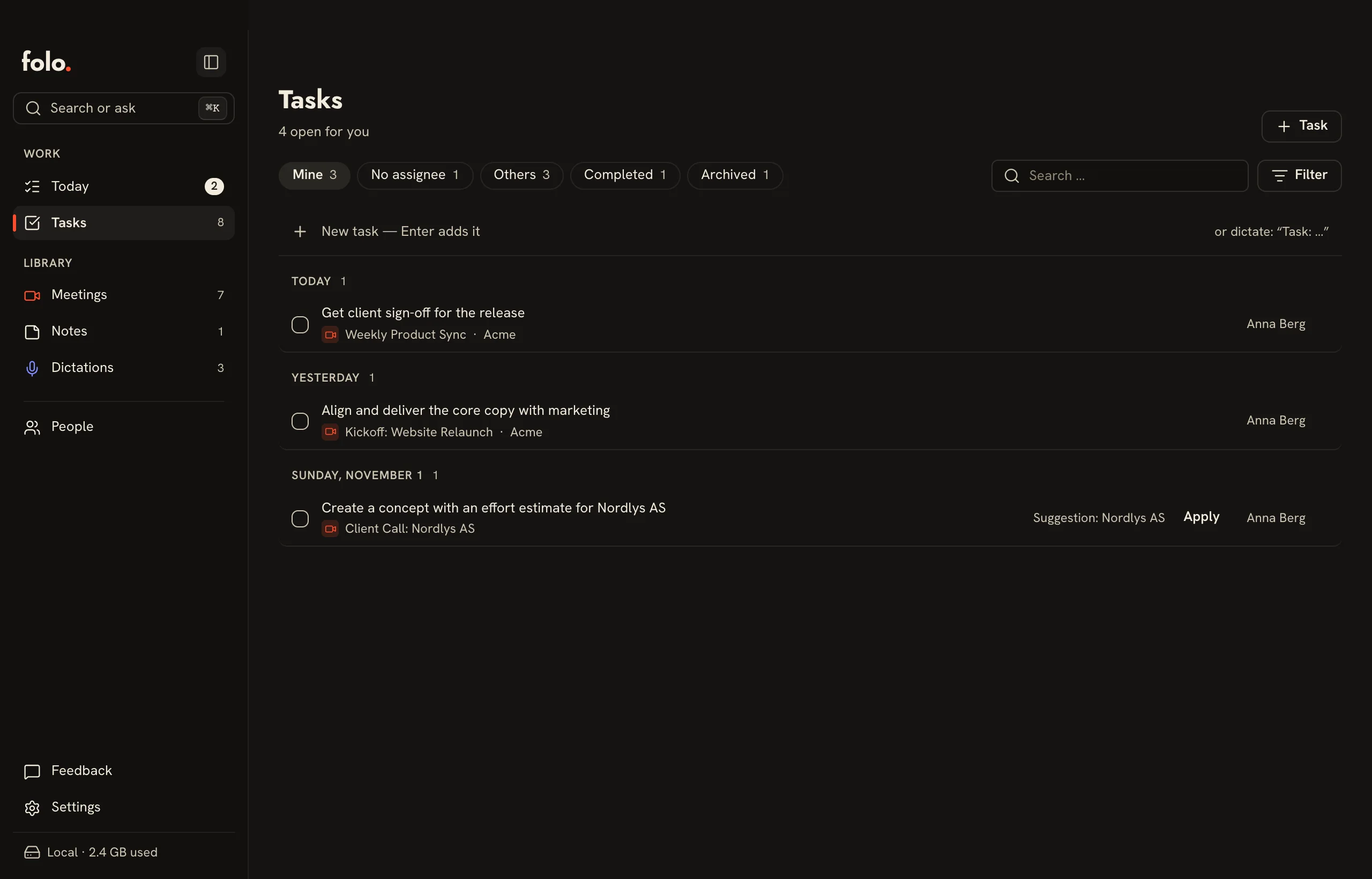
Under “Tasks” you filter by “Mine”, “No assignee”, “Others” and “Completed”. For “Mine” to work, tell folo once who you are: choose “That’s me” on your person.
A click on a task shows its quote and “Show in transcript”. You land right at the spot where it was said. The search field narrows by text, “Filter” by project.
Your own tasks
Type into “New task” and press Enter. Or say it: a note that starts with “Task:” becomes a task right away. The keyboard is faster: ↑ and ↓ (or J and K) move through the list, Space ticks off, Enter opens the source. Select several with x or the checkboxes, then complete, assign or archive them together.
Open tasks from older meetings move to the archive after four weeks. Change that under “Settings › General”.
The task panel
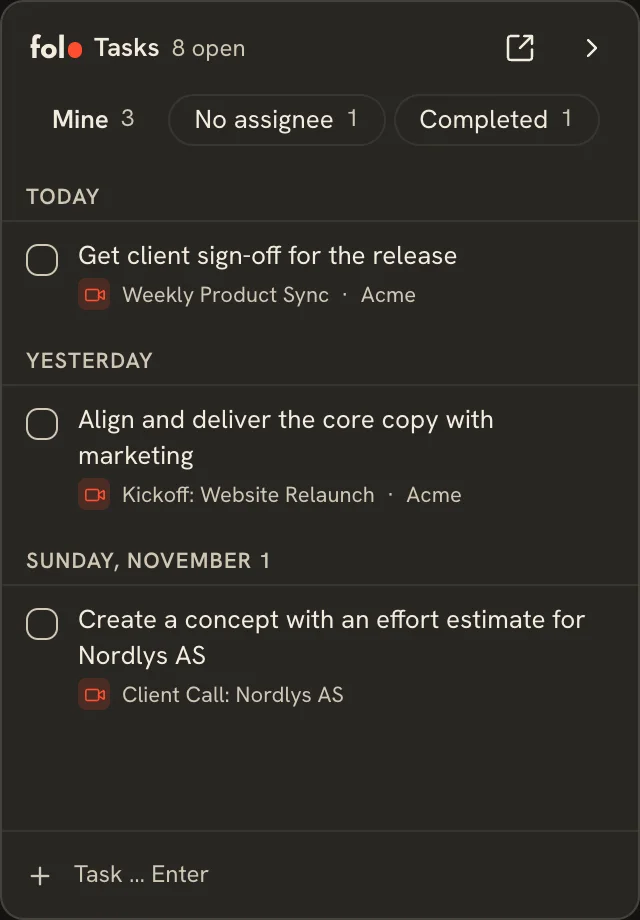
Working in another app and want to keep the list in view? The task panel is a narrow window that docks to the screen edge and stays on top. Tick off, add a task, jump to the source: it all works there too. Open it with ⇧⌘A (Windows and Linux: Ctrl + Shift + A).
Tasks in a meeting
On the meeting page, the tasks and decisions of that conversation sit on the right. “All ›” opens the list, filtered to this meeting. If there was nothing to do, folo says so.