Reference
Privacy & on-device
Last updated: November 2026
Your conversations stay yours. Recording, transcription and speaker recognition run on your computer unless you change that. Here’s what lives where, how folo backs up your data, and when anything goes out at all.
What stays on your computer
folo stores meetings, recordings, screenshots and downloaded models only on your computer. Voice profiles stay local. There’s no account and no folo server holding your content. “Open data folder” under “Settings › Retention” takes you there.
Background: private meeting notes: keeping transcripts off other people’s servers.
Daily backup
Once a day folo makes a copy of its database, in the data folder under backups. The last three are kept. The database holds meetings, transcripts and tasks. Your recordings are separate files next to it.
If folo can no longer open the database because it’s damaged, it tells you at startup. “Put backup back and restart” brings back the latest copy. Whatever you changed after that copy is then missing from folo. The damaged file stays in the data folder, and the recordings aren’t affected. If there’s no backup, get in touch through “Settings › Help & community › Report a problem”.
An older folo won’t open a database from a newer version. That way nothing breaks if you go back a version.
How long audio stays
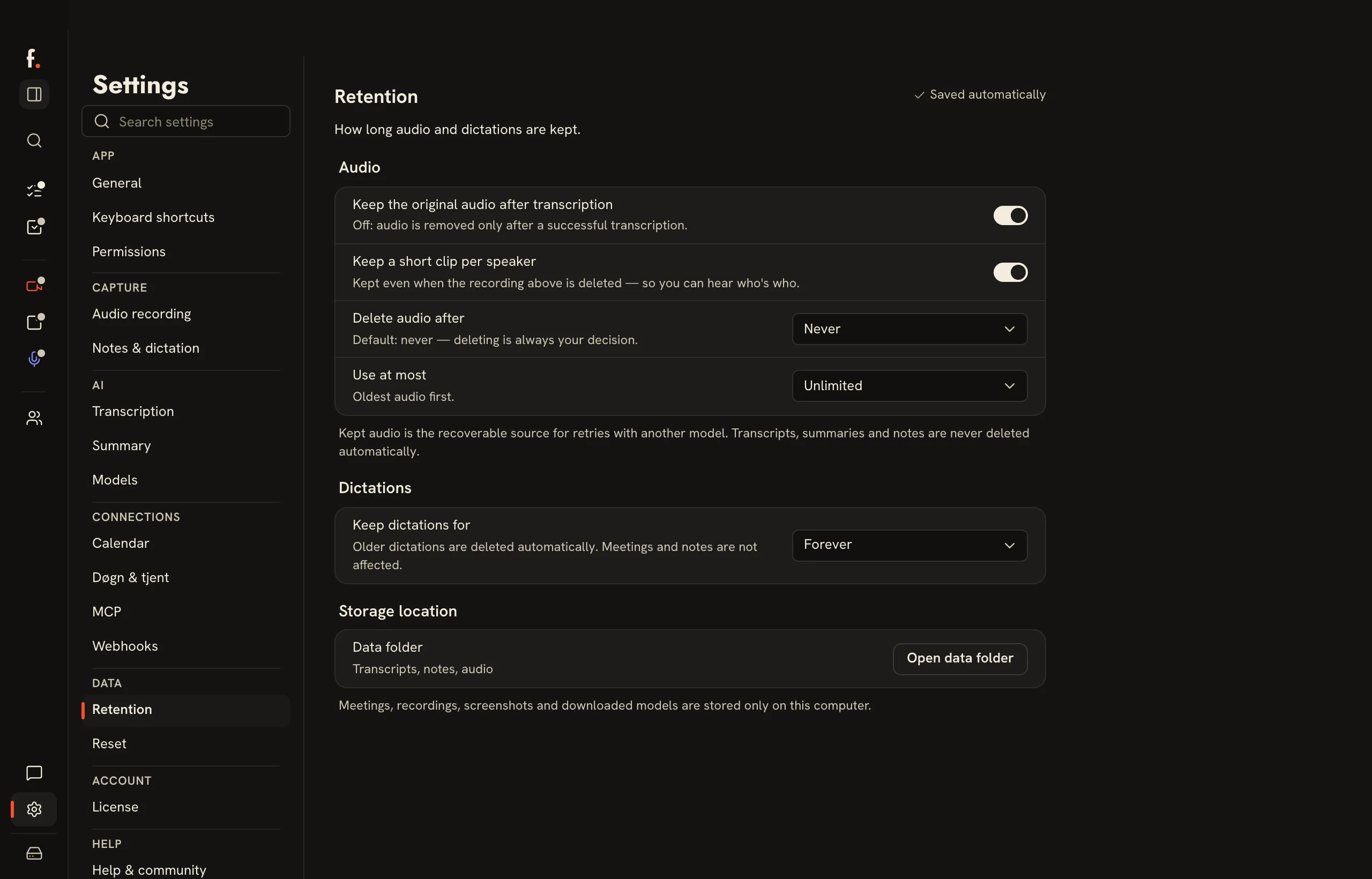
Deleting is always your decision. By default folo keeps the original audio. That has a use: you can have a meeting rewritten later with another model. Under “Settings › Retention” you change this:
- “Keep the original audio after transcription”. Off: folo removes the audio once transcription succeeded.
- “Keep a short clip per speaker”. Stays even then, so you can hear who’s who.
- “Delete audio after”. A period from 7 days to a year.
- “Use at most”. A storage limit, oldest audio goes first.
folo never deletes transcripts, summaries or notes on its own. Bulk deletion lives under “Settings › Reset”, always with a confirmation.
When anything goes out
Only if you set it up that way. Both choices apply to all meetings, not per meeting, and folo asks before switching.
- Transcription. With ElevenLabs Scribe or OpenAI GPT Transcribe, the audio of meetings, notes and dictations goes to that service, with your own key.
- Summary and AI. With Claude Haiku 4.5 or Claude Code, transcript text goes to Anthropic; with Codex CLI, to OpenAI. Dictations being tidied up go there too. With your own server, the text goes to the address you enter.
Your API keys sit in your system’s credential store. Claude Code and Codex CLI handle their own sign-in, folo stores no key for them.
Apart from that, checking your license and looking for updates sends a little technical data, no content. Feedback you send yourself, and you see what goes out first. folo never sends the diagnostics package under “Settings › Help & community”; you share it yourself.
MCP integration
Under “Settings › MCP” you connect the local kveik MCP server to AI clients like Claude Desktop, Claude Code, Cursor, Codex, VS Code or Windsurf. Connected tools can search and read meeting metadata (title, time, duration and participants), tasks and decisions from meetings, and project data, and on request a meeting’s transcript and summary. They don’t get audio. They can also invoke actions registered by suite apps and set up Døgn tracking; those tools can change app or project state.
Note: Whatever a tool reads ends up in its context. That tool’s privacy settings apply.