Learning path
Summaries & templates
Last updated: November 2026
Once the transcript is ready, folo writes a summary with tasks and decisions. The template decides what it looks like. Which AI writes it, you choose once for all meetings.
The meeting page
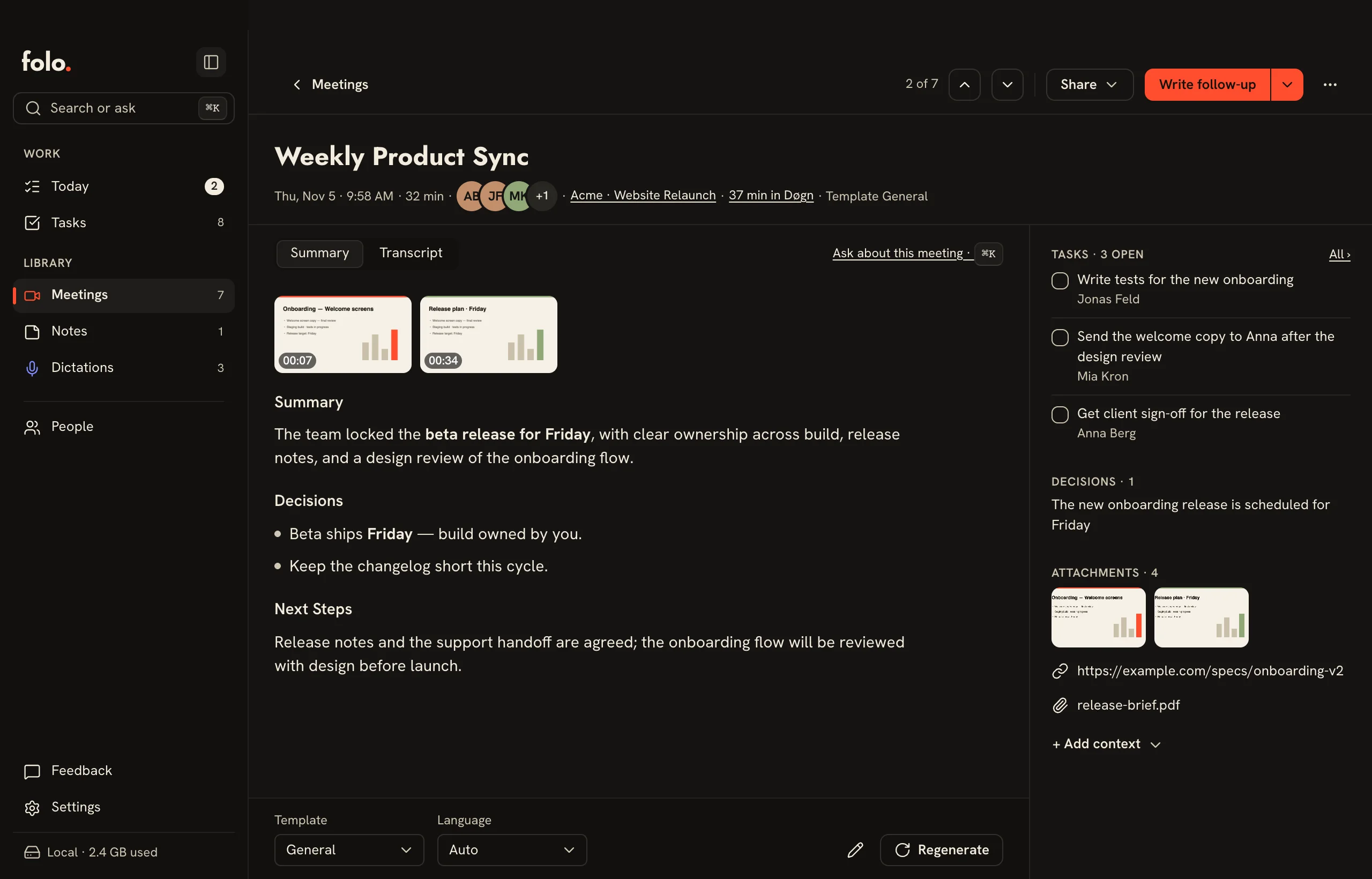
A meeting opens on “Summary”, with “Transcript” next to it. Tasks, decisions and attachments sit on the right. “+ Add context” adds files, text or links afterwards.
The pencil lets you edit the summary by hand.
Template and language
At the bottom of the page you choose “Template” and “Language”. “Auto” follows the meeting’s language. Built in are “General”, “1:1”, “Standup” and “Sales/Client”. If you changed something, “Regenerate” writes the summary afresh.
Before folo summarizes, it names the speakers. It gives the AI the date, title, participants and project, and your own terms too. That keeps names and spellings right, even in long meetings.
Background: meeting notes for consultants: a template and best practices.
Your own templates
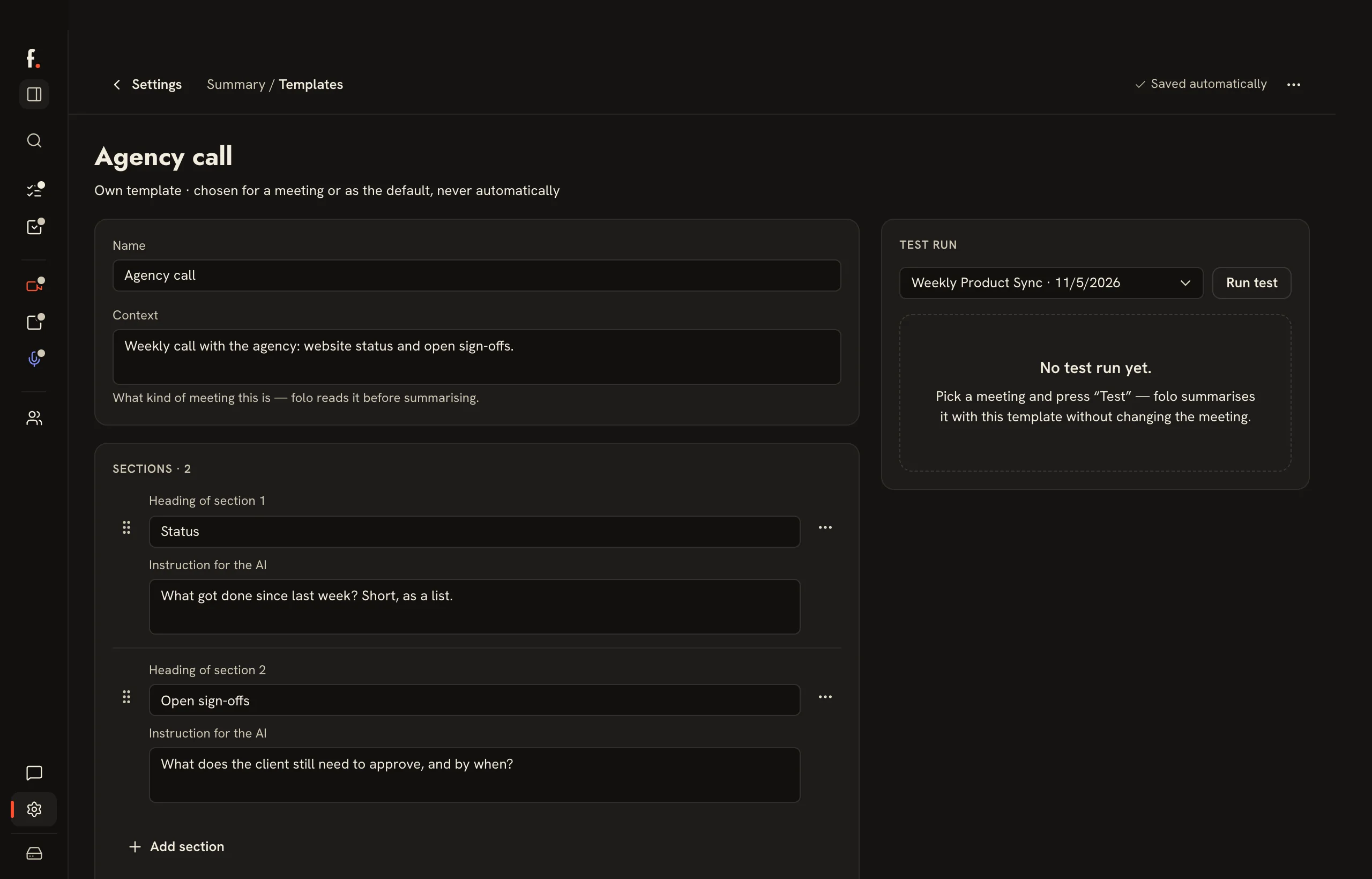
Under “Settings › Summary”, “Add template” creates your own template. Give it a name and a context, meaning what kind of meeting this is, say “Weekly call with the agency”. Each section has a heading and an instruction for the AI.
folo always picks up tasks and decisions, they need no section of their own. The “Test run” summarizes one of your meetings with the template without changing the meeting. That’s also where you set the “Default template” for new meetings.
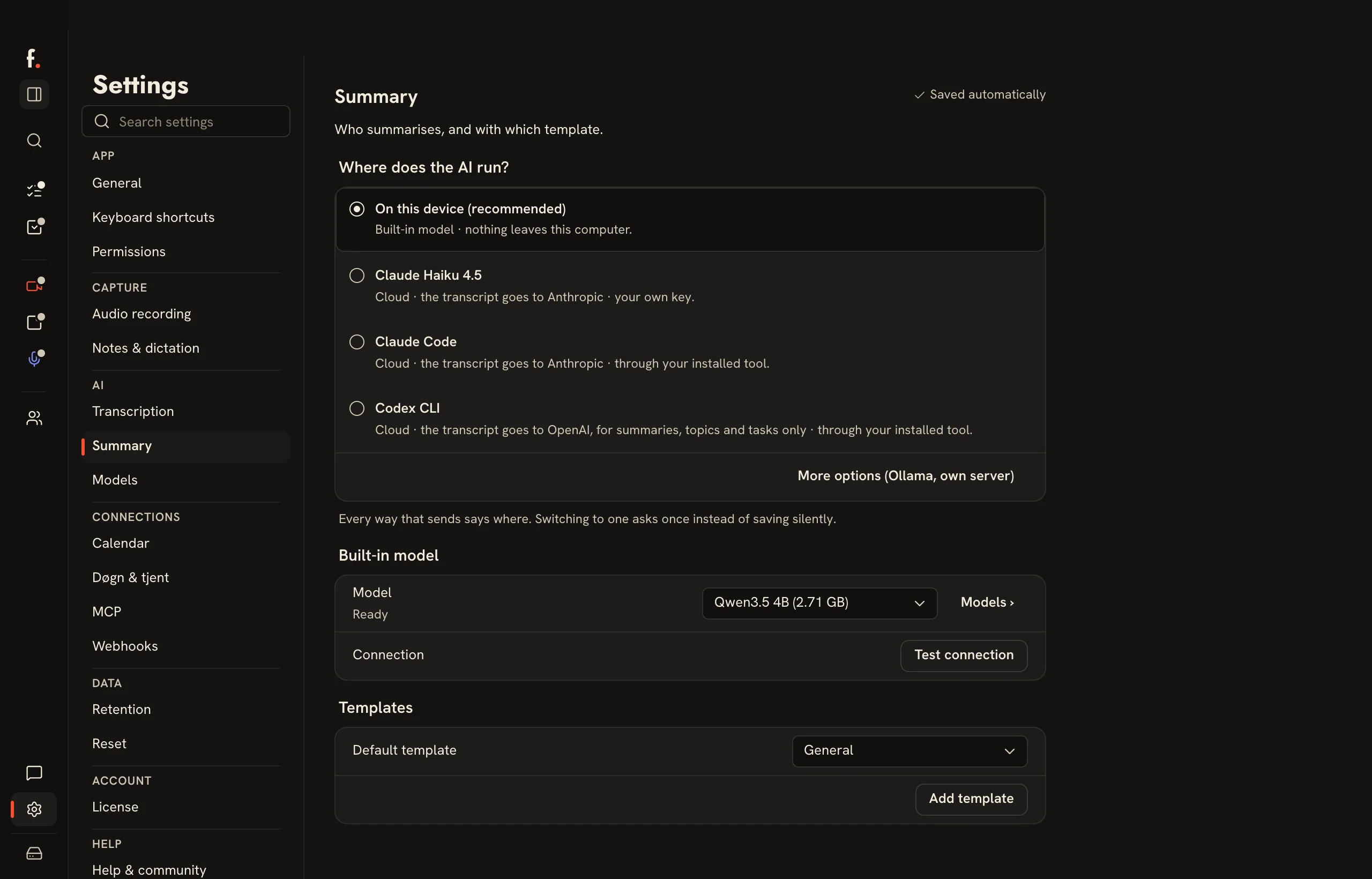
Where does the AI run?
You set this under “Settings › Summary”. It applies to all meetings.
- “On this device (recommended)”. The default: the built-in model, no Ollama needed. Nothing leaves your computer. You download it once, during setup, on “Today” or under “Settings › Models”: Qwen3.5 2B (1.28 GB) or 4B (2.71 GB). With at least 16 GB of memory there’s also 9B (5.68 GB).
- Ollama. Your own models, on your computer. You install Ollama yourself, then pick one of your models. The preset is
qwen2.5:14b. - “Own server (OpenAI-compatible)”. LM Studio, llama.cpp, Jan, vLLM or LocalAI. Local or on the network, depending on the address you enter.
- Claude Haiku 4.5. Cloud. The transcript goes to Anthropic, with your own key.
- Claude Code. Cloud. The transcript goes to Anthropic through your installed tool. Under “Model” you pick Claude Haiku 4.5 or Claude Sonnet 4.6.
- Codex CLI. Cloud. The transcript goes to OpenAI through your installed tool, for summaries, topics and tasks only.
Ollama and your own server sit under “More options (Ollama, own server)”. Before folo switches to a cloud service, it asks you and says where the text goes. “Test connection” checks that everything’s in place.
Download the model once. Without the built-in model you still get transcripts and notes right away. The summary waits until the model is there. Until then, notes get no extracted tasks, and dictations arrive without tidying up.