Learning path
Finding & managing meetings
Last updated: November 2026
After a few weeks you have dozens of meetings. Here’s how to find a conversation again quickly, assign it to a project and tidy up.
Searching and filtering
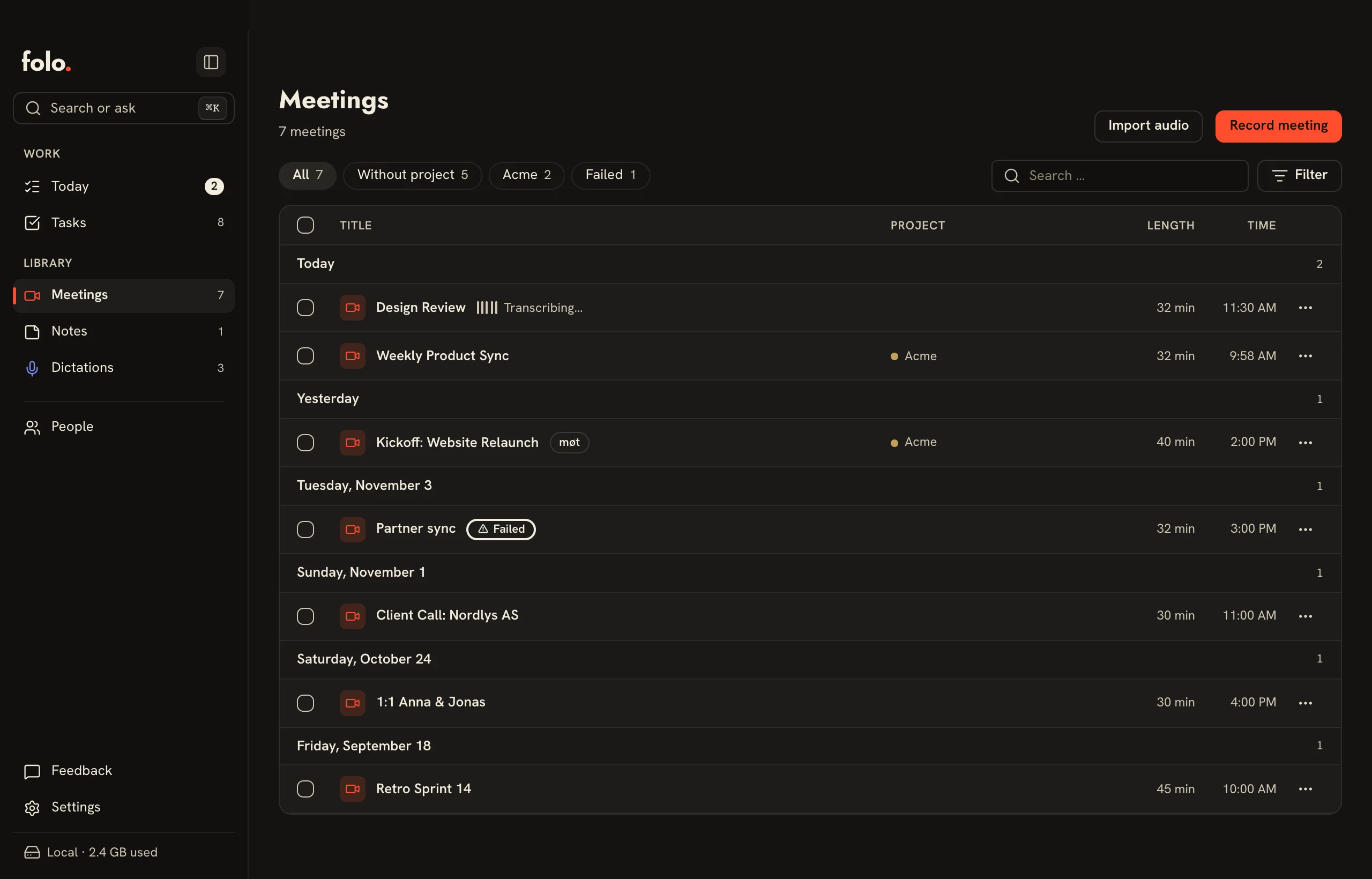
Under “Meetings” your recordings sit by day. The chips on top show “All”, “Without project” and “Failed”, plus your recently used projects. ⌘F (Ctrl + F) jumps to the search, “Filter” narrows by client.
In an open meeting, ⌥↑ and ⌥↓ (Alt + arrow) page through the list.
Assigning projects
folo shares clients and projects with Døgn. “Assign project” attaches a meeting to a project. Meetings without a project show up on “Today” under “To do” if they’re meant to go to Døgn.
Several at once
Tick the checkboxes or press x to select meetings. Then assign or delete them together. Esc clears the selection.
When something goes wrong
If transcription failed, the source audio is safe. “Retry” starts it again, on the meeting page or on “Today”. If only the summary failed, the transcript is already saved. Check the AI under “Settings › Summary” and click “Retry summary”.
If folo won’t start at all, a window tells you why. If the database is damaged, folo offers you the latest backup, see Privacy & on-device.
Deleting a meeting
Permanent: If you delete a meeting, its transcript, summary and audio are gone. This can’t be undone.