Learning path
Recording a meeting
Last updated: November 2026
How to record a meeting with folo: your microphone and your system audio together, so both sides of the conversation. Nothing joins the call, and folo never records video.
Starting and ending a recording
Click “Record meeting” on “Today” or “Meetings”, or press ⌥⌘R (Windows and Linux: Ctrl + Alt + R). The same shortcut ends the recording, even with another app in front. While you record, the sidebar shows a card with “End”.
If system audio is missing, the button reads “Record meeting · mic only”. Then folo hears only you, not the others in the call. “Today” tells you how to fix it.
When a call starts
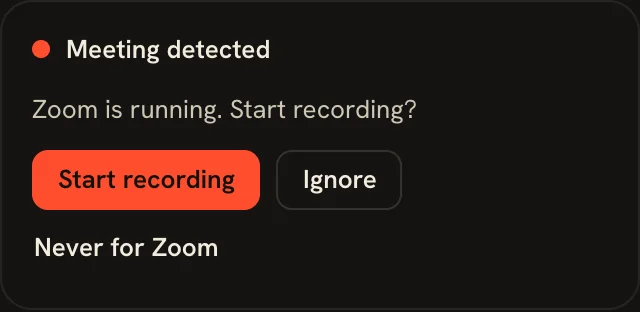
When a known meeting app takes the microphone, folo speaks up with “Meeting detected”. That works with Zoom, Teams, Webex, Slack, Discord, WhatsApp and Signal, among others. You pick “Start recording”, “Ignore” or “Never for …”.
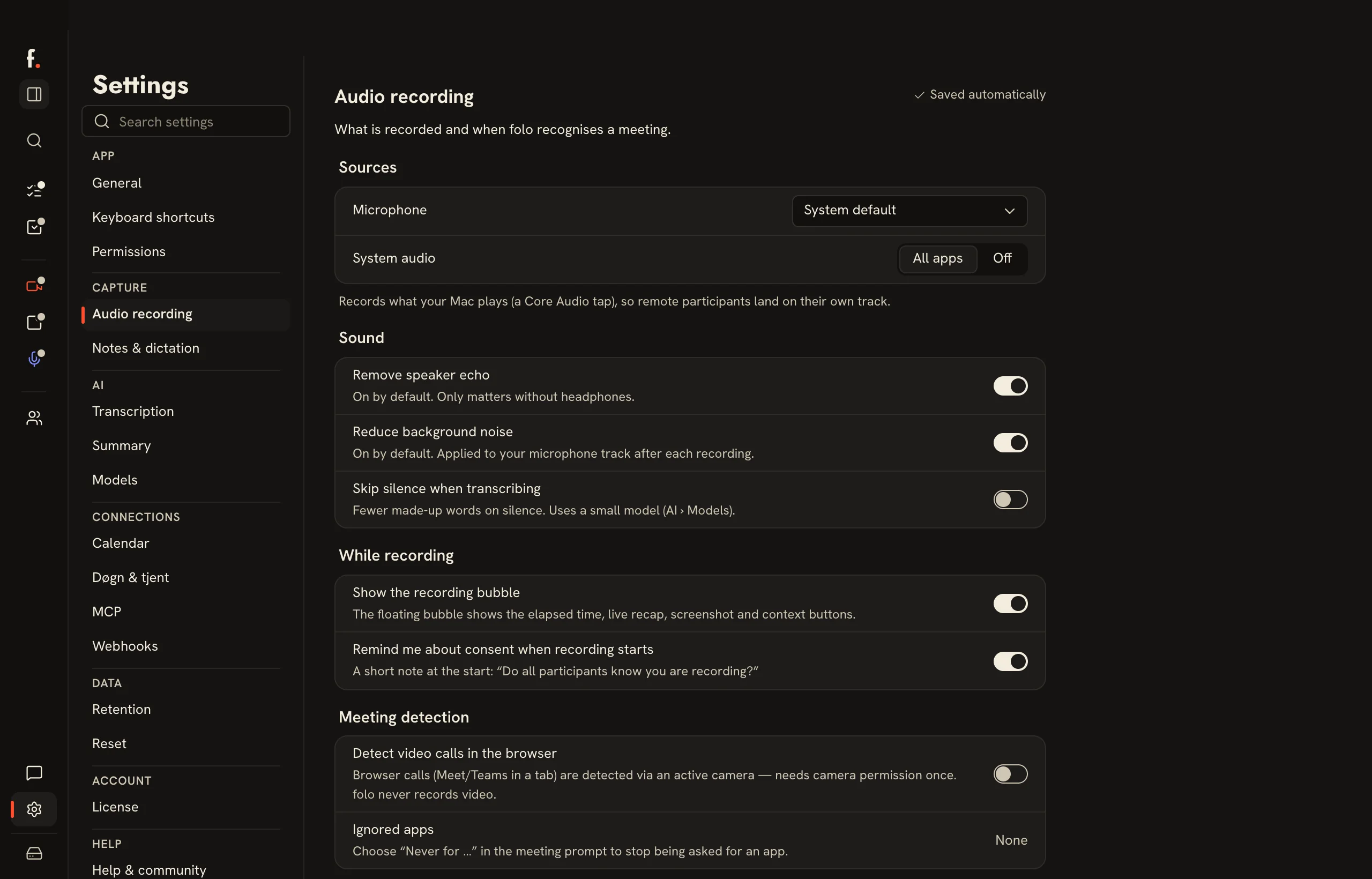
Calls in the browser, like Meet or Teams in a tab, folo spots by the active camera. Switch on “Detect video calls in the browser” once under “Settings › Audio recording”. For a conversation in the room, or an app folo doesn’t know, start the recording yourself.
Background: how to record a Zoom, Teams or Meet call without a bot.
While recording
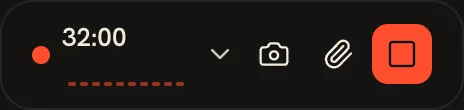
A small bubble floats over your windows. It shows the elapsed time and has four buttons:
- Arrow. Opens the live recap, bullet points on the conversation so far.
- Camera. “Capture screenshot”. The image lands at exactly this spot in the transcript. Mark what mattered with pen, rectangle, arrow and text.
- Paperclip. “Add meeting context”: copied text, a link or a file. You can also drag them onto the bubble.
- Stop. Ends the recording. Then folo writes it down.
The bubble gets in your way? “Show the recording bubble” under “Settings › Audio recording” turns it off.
Title from your calendar
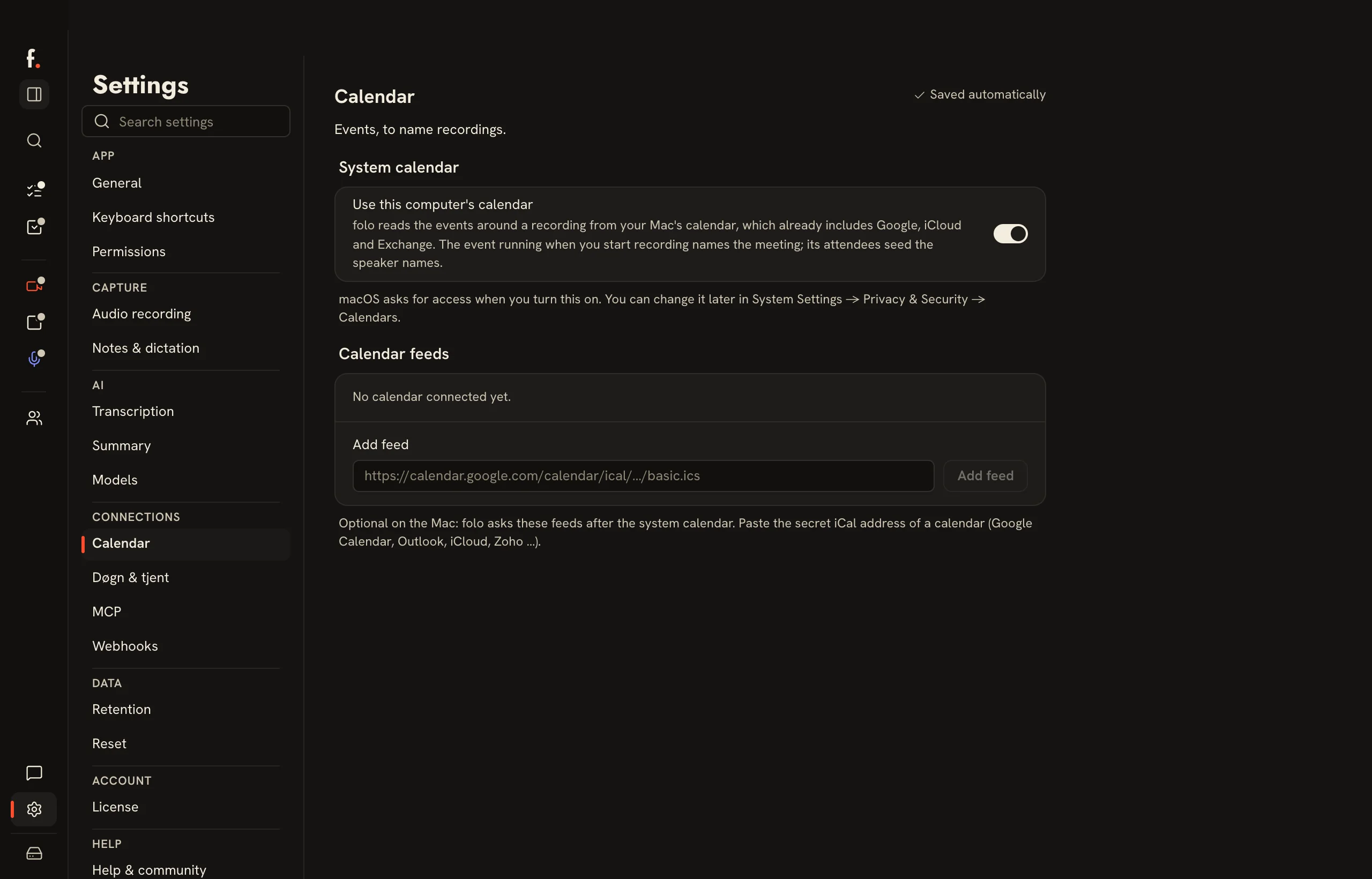
If an event is running when you start, folo takes over its title and participants. You don’t need an account for that. Under “Settings › Calendar” there are two ways:
- Mac. “Use this computer’s calendar” reads your Mac’s calendar. macOS asks for access when you turn it on.
- Windows and Linux. Paste the secret iCal address of your calendar as a feed, from Google Calendar, Outlook, iCloud or Zoho, say. This works on the Mac too.
Without a calendar, folo gives the recording a title itself.
Sound and permissions
Under “Settings › Audio recording” you pick your microphone and system audio. For system audio there’s also “Meeting app only”, where your system supports it. “Remove speaker echo” and “Reduce background noise” are already on.
If something doesn’t work, look under “Settings › Permissions”. “Is everything working?” and the recording self-test show you why.
Tell people first. Only record when everyone involved agrees. folo reminds you at the start: “Do all participants know you are recording?”
Background: GDPR-compliant meeting recording: consent, storage and retention.
Calls from Møt
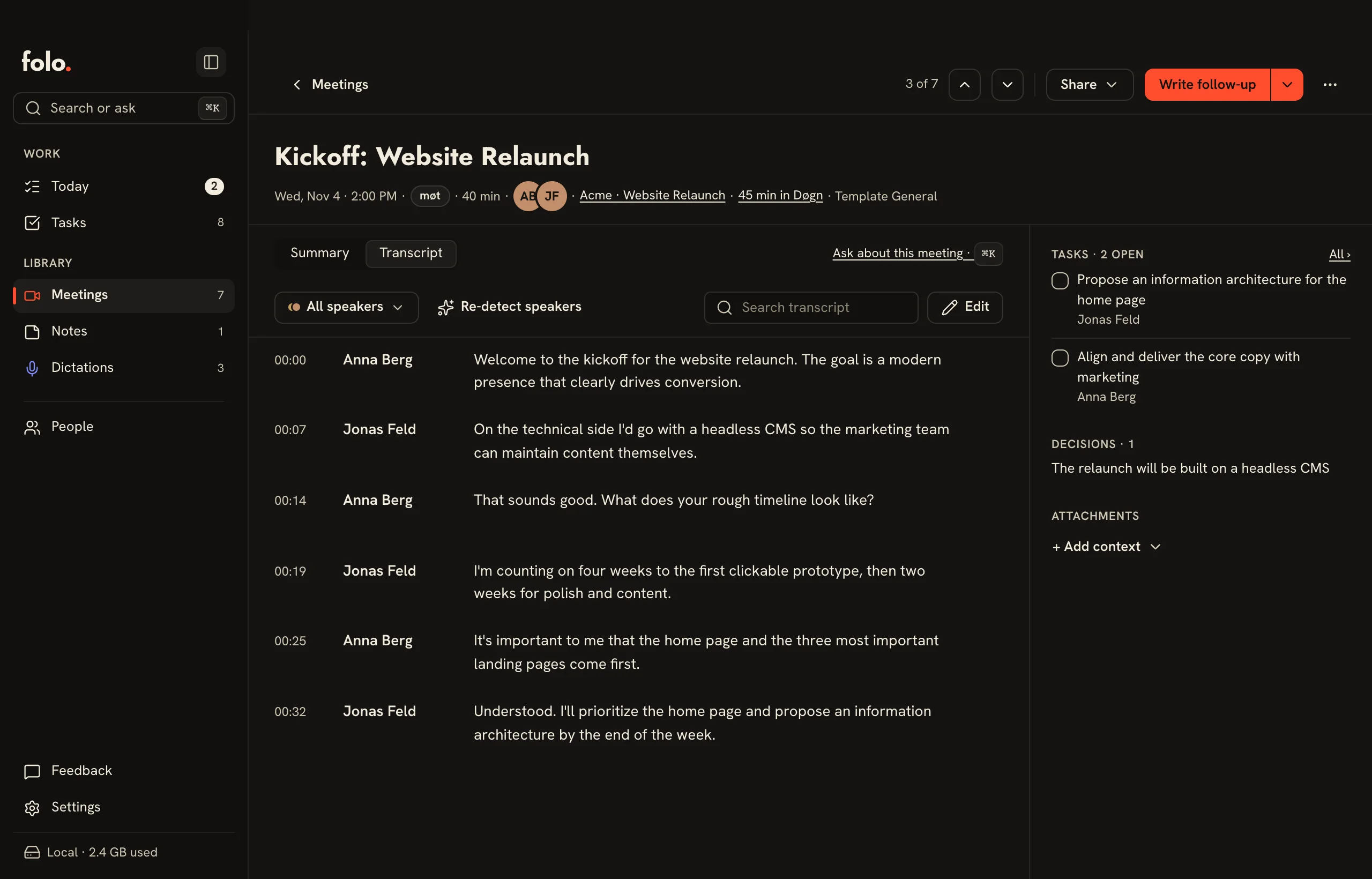
If you call with Møt, our video call app, and record there, the conversation lands in folo by itself. Møt passes on every person as their own audio track. So folo writes each passage down with the right name, and you don’t have to assign speakers. You can listen to every passage.
Chat and shared files sit with the meeting. Whatever was screen-shared in the call is attached as a video. In the list and on the meeting page you spot these calls by the “møt” label.
Importing a recording
Recorded the conversation on your phone or with another program? Click “Import audio” under “Meetings”, or drag the file into the window. folo reads M4A, MP4, MP3, WAV, FLAC, OGG, AIFF and CAF, and treats the file like one of its own meetings: transcript, speakers, summary.