Learning path
Export & follow-up
Last updated: November 2026
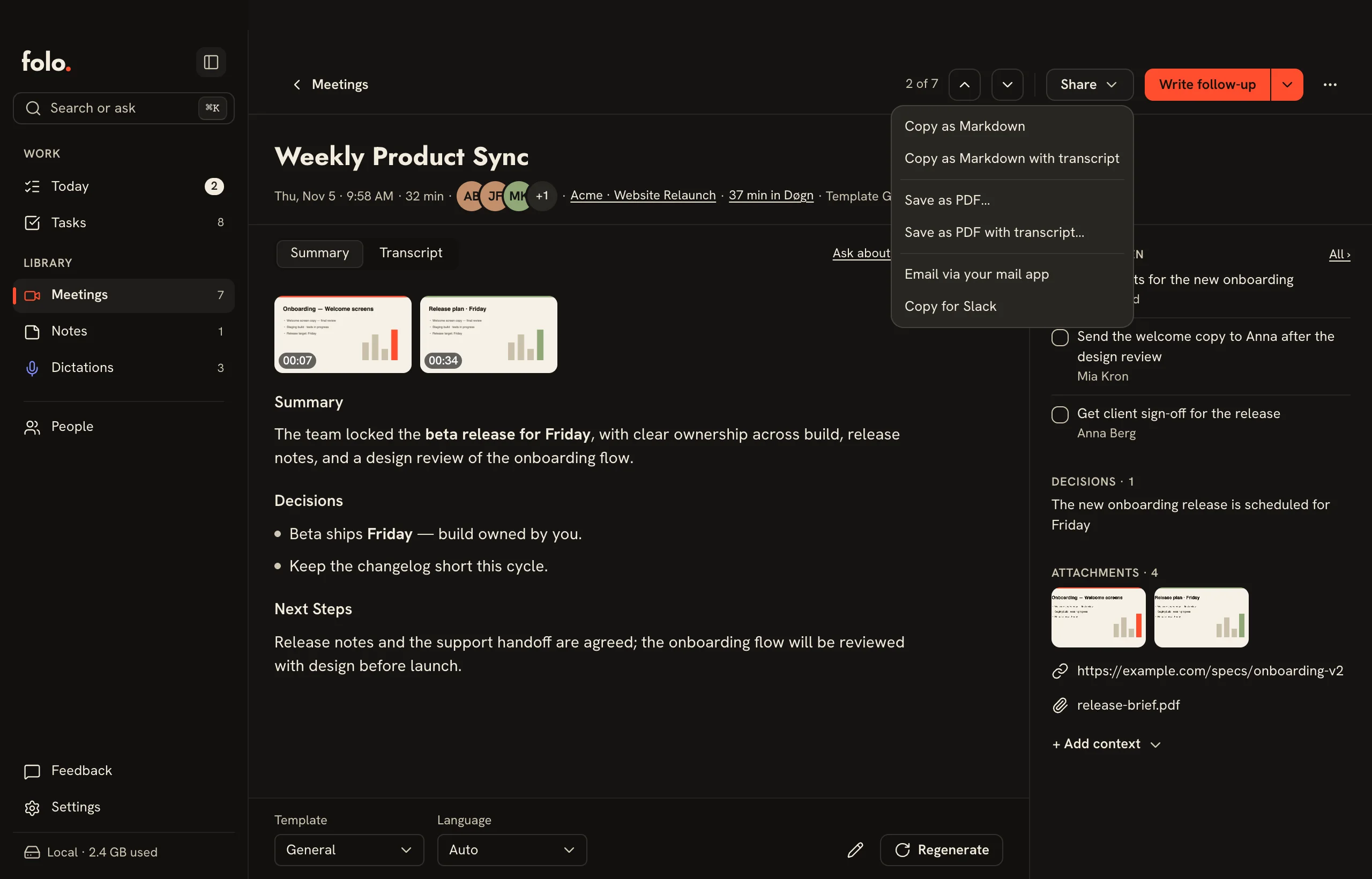
After the call you usually want to pass the result on: as an email to the team, as a document, or as tracked time. For that, “Share” and “Write follow-up” sit at the top of the meeting page.
Writing a follow-up
“Write follow-up” turns decisions and tasks into an email and opens it as a draft in your mail app. Nothing is sent, that part’s yours. The arrow next to it changes the main action: “Copy summary” or “Copy transcript”. Your choice then applies to every meeting.
Background: how to share meeting summaries securely.
Share
- “Copy as Markdown”. Summary and tasks to the clipboard, “with transcript” if you like.
- “Save as PDF…”. A document for anyone who doesn’t want Markdown, also “with transcript”.
- “Email via your mail app”. The follow-up draft.
- “Copy for Slack”. The same content, formatted for Slack.
The ⋯ menu also holds “Export as Markdown…” and “Export Folo package…”. A package holds the whole meeting for another folo. To read it in, drag the .folo file into the window.
Handing off to Døgn
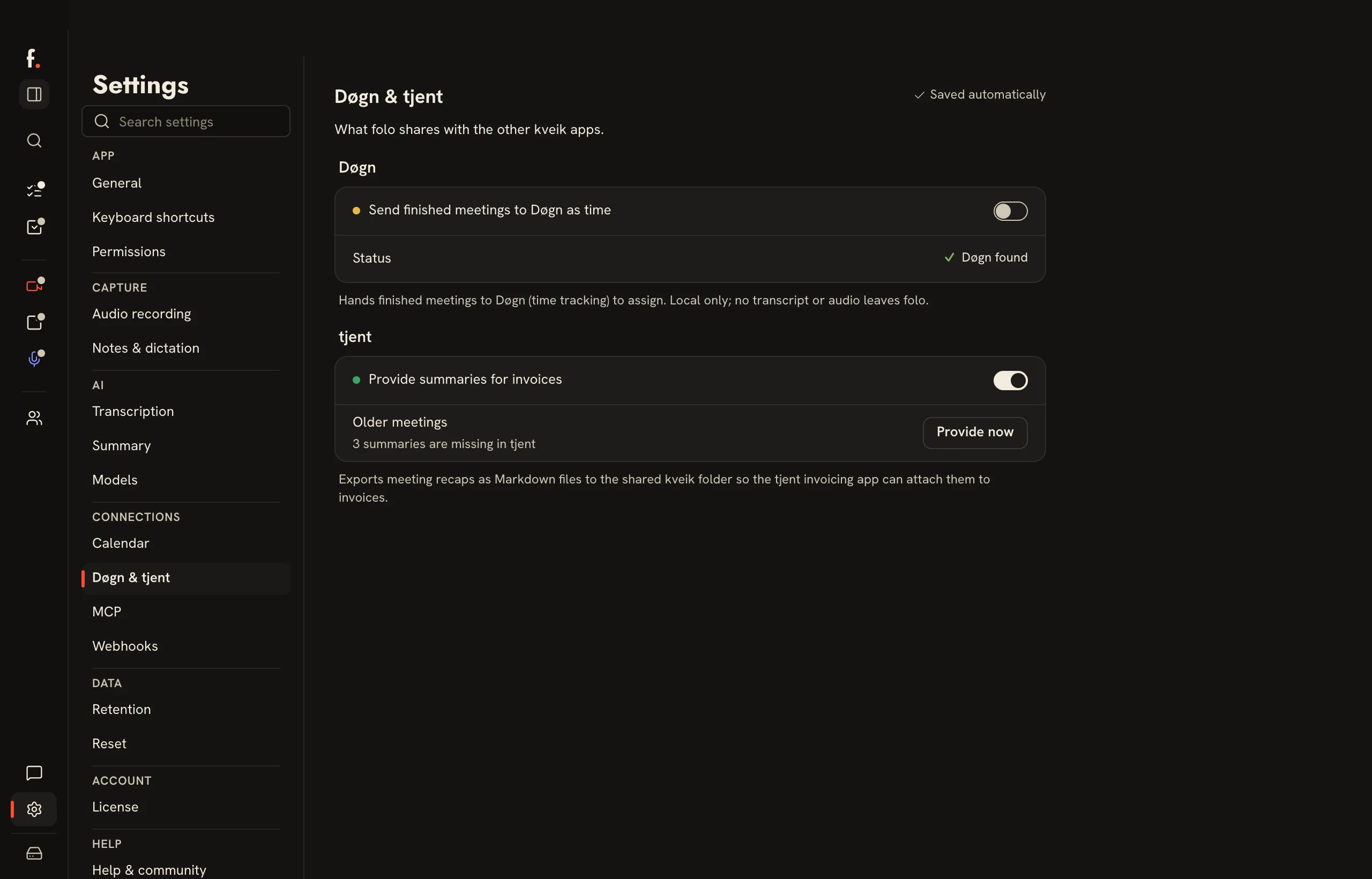
Under “Settings › Døgn & tjent”, switch on “Send finished meetings to Døgn as time”. Every finished meeting then lands as a time entry in Døgn, our time tracker. The handoff happens locally, neither transcript nor audio leaves folo. Once the time is tracked, the note on the meeting page, such as “37 min in Døgn”, takes you straight to the entry.
Summaries for tjent
“Provide summaries for invoices” puts meeting recaps as Markdown files in the shared kveik folder. That way our invoicing app tjent can attach them to invoices. This too stays on your computer. For older meetings there’s “Provide now”.