Learning path
Introduction
Last updated: November 2026
folo writes it down when you talk: in a call, as a quick note, or straight into any app. It runs on your own computer, on macOS, Windows and Linux. No bot joins the meeting, and you don’t need an account.
First launch
On first launch folo walks you through three short steps: “Welcome”, “Microphone” and “Try one dictation”. The transcription model downloads once in the background. You can record right away; folo writes it down as soon as the download is done.
After that you land on “Today”. A short list at the top shows what’s still missing, such as microphone, system audio or model. Once everything is done, it goes away.
Today
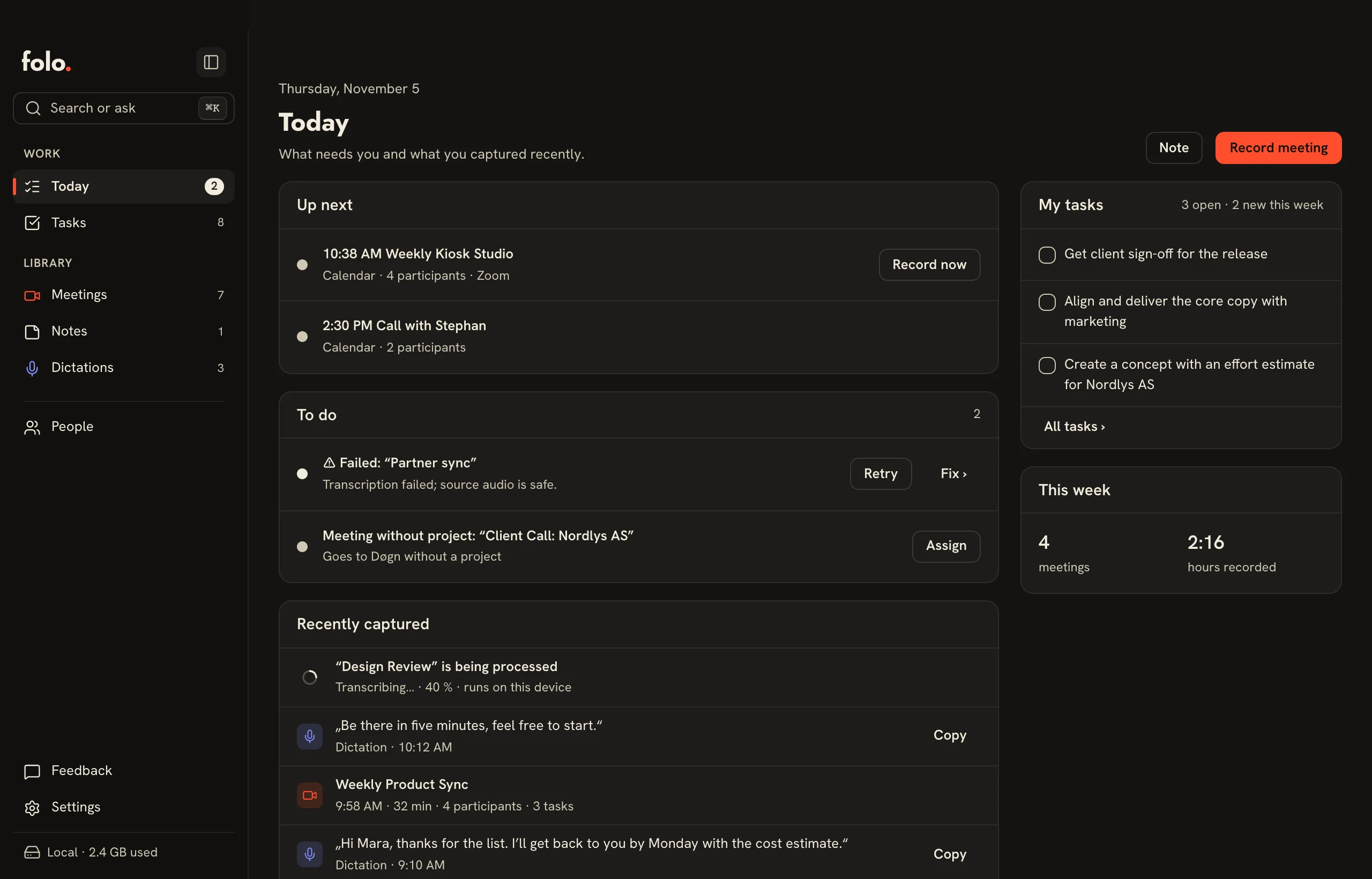
“Today” is your start page. In the morning you see what’s coming up, in the evening what you captured:
- “Up next”. Your next events, if a calendar is connected. “Record now” starts right away.
- “To do”. What needs you, say a failed meeting or one without a project.
- “Recently captured”. Your latest meetings, notes and dictations, even if they’re from yesterday.
- “My tasks”. What’s open for you.
“Note” and “Record meeting” sit at the top right.
The sidebar
Everything lives in one window. On the left are “Today” and “Tasks”, below them “Meetings”, “Notes” and “Dictations”, then “People”. “Feedback” and “Settings” sit at the very bottom. ⌘1 to ⌘6 jump between the pages (Windows and Linux: Ctrl + 1 to Ctrl + 6). ⌘\ (Ctrl + \) hides the sidebar.
At the top is “Search or ask”. ⌘K (Ctrl + K) opens it from anywhere. The ? key shows every shortcut.
folo stays within reach when the window is closed. Click the icon in the menu bar (Windows and Linux: in the system tray) and a small panel opens for meetings, notes and dictation. A right-click shows the menu.
How a meeting goes
- Record. folo speaks up when a call starts, or you start it yourself.
- Write it down. Once you stop, folo turns the recording into a transcript, split by speaker.
- Summarize. The transcript becomes a summary, tasks and decisions.
- Carry on. Ask follow-up questions, tick things off, write a follow-up, or hand the time to Døgn.
New here? Follow the learning path from top to bottom. The reference is for looking things up.
Requirements
folo runs on macOS 14.4 and later (Apple Silicon and Intel, as a DMG), on Windows 10 and 11 (64-bit, as an installer) and on Linux (x86_64, X11 or Wayland, as an AppImage). The interface comes in English and German.
The Windows installer isn’t code-signed yet, so SmartScreen may warn you on first launch: click “More info”, then “Run anyway”. Make the AppImage executable once (chmod +x). folo fetches updates itself on all three systems. On Windows it quits completely before an update.
On the Mac, the system asks once for microphone and system audio. On Windows and Linux there’s nothing to allow for system audio: folo records what your speakers play.